What are Favorites?
Your customers can save their customized items as Favorites. This makes reordering faster and easier, encourages loyalty account / online ordering usage, and helps streamline in-store operations.
Steps to Add an Item to Favorites
Step 1 - Sign in to your loyalty account via the app or online
Step 2 - Open a product on the menu
Step 3 - Add customizations
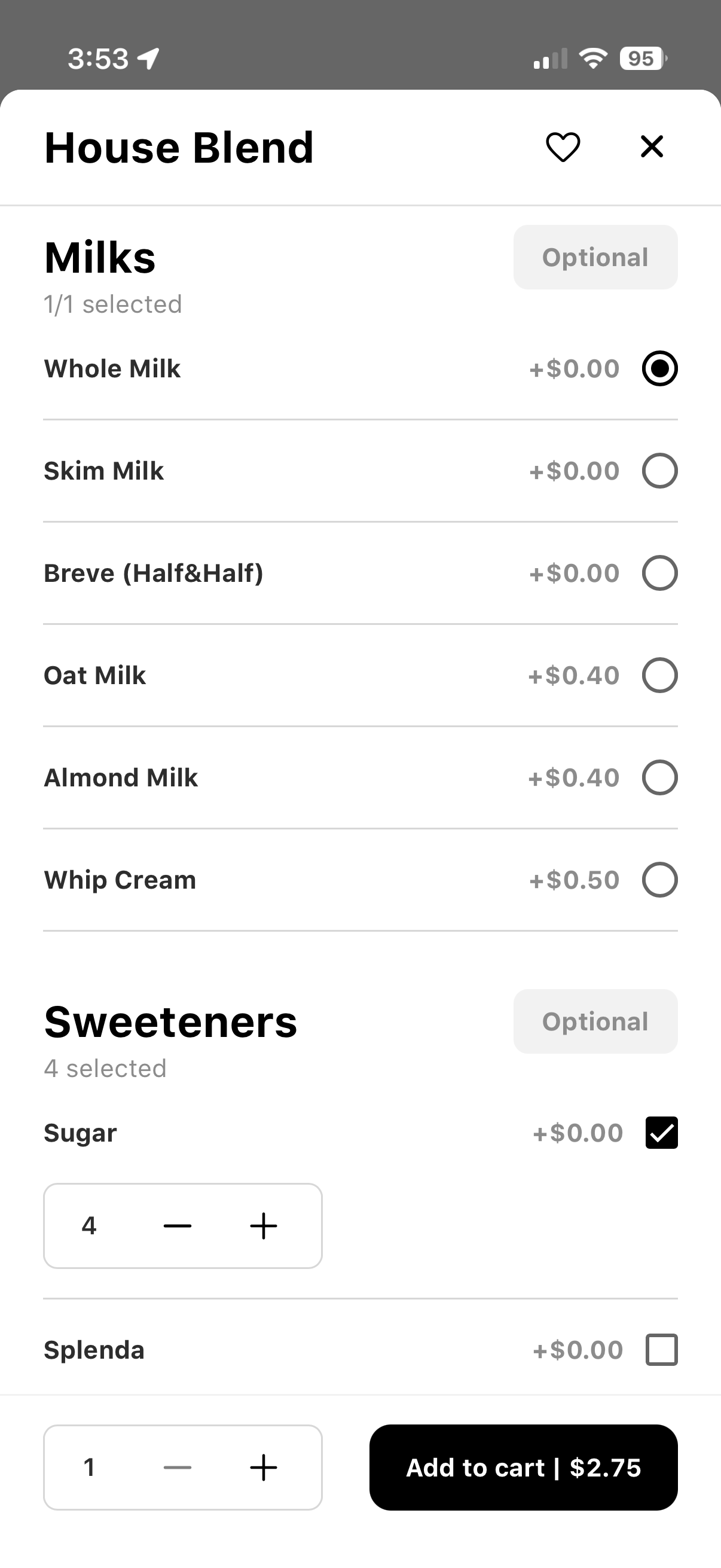
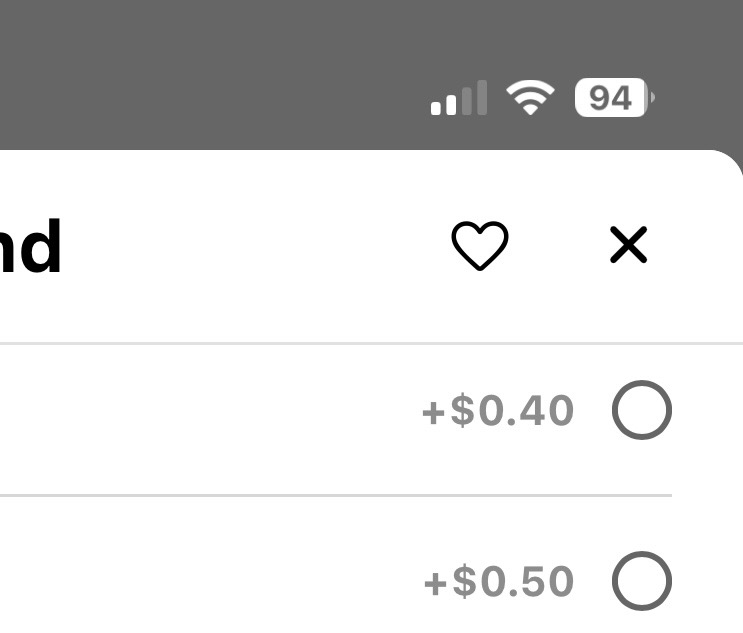
Step 4 - Tap the heart icon
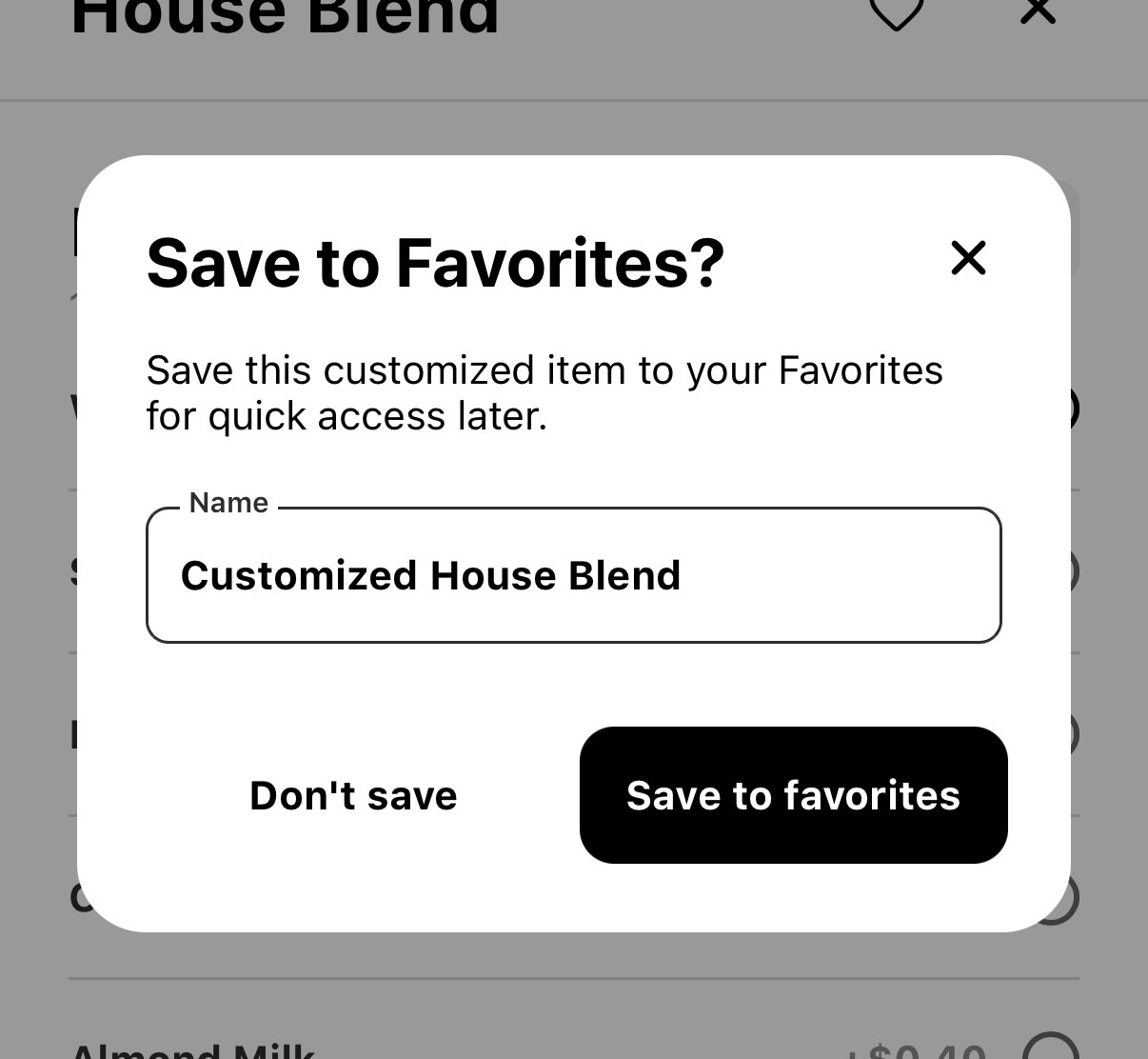
Step 5 - Name it and save it
FAQ
How do customers add favorites?
Customers add favorites via online ordering by being signed in, and tapping on the heart icon after adding the required modifications (plus whatever else they want).
Where do customers access their favorites?
Once a customer creates a favorite, it is added to a new product category called favorites. This category is located at the top of the menu, right after past orders and featured items.
Will favorites interfere with reporting?
No. Favorited items are still the original item (just with saved configurations and a different name displayed to the user), so all reporting data will be the same as it has been.
Can customers add a favorite even if it isn’t modified?
Yes. To make their ordering easier both online and in-store, they can add items even if they have the exact same default recipe.
Can employees add a favorite on behalf of customers?
No. While employees will be able to access favorites from the POS menu, they will not be able to add, update, or remove favorites on behalf of your customers. However, temporary modifications to customer favorites will of course be able to be made for individual orders.
Do customers have to have the app to add favorites?
No. As long as they sign in to their loyalty account, they can add favorites via the App or Web version of online ordering.
Do customers have to have a loyalty account to use favorites?
Yes. The only way we can save favorites for future use is to associate them with an account.
What happens when a favorited item isn’t available at my store?
The item will be disabled and a banner will explain the item is unavailable at your location.
What happens if a favorited item is changed on my menu?
If an item has been changed via a menu update, a pop up window will explain that to your customer when they interact with that favorite and advise them to review their selections.
What happens if a favorited item is no longer offered on my menu?
If an item has been removed via a menu update, a pop up window will explain that to your customer when they interact with that favorite and automatically remove it from their favorites after your customer acknowledges the pop up message.
Can customers remove favorites?
Yes. Customers can tap the filled in heart icon to remove it from their favorites.
Was this article helpful?
That’s Great!
Thank you for your feedback
Sorry! We couldn't be helpful
Thank you for your feedback
Feedback sent
We appreciate your effort and will try to fix the article